
Last verified 2026-09-25 by ReviewGamers Editorial
GeForce NOW only streams a specific, published list of games — not your entire storefront library — and a missing Play button doesn’t always mean what it looks like it means.
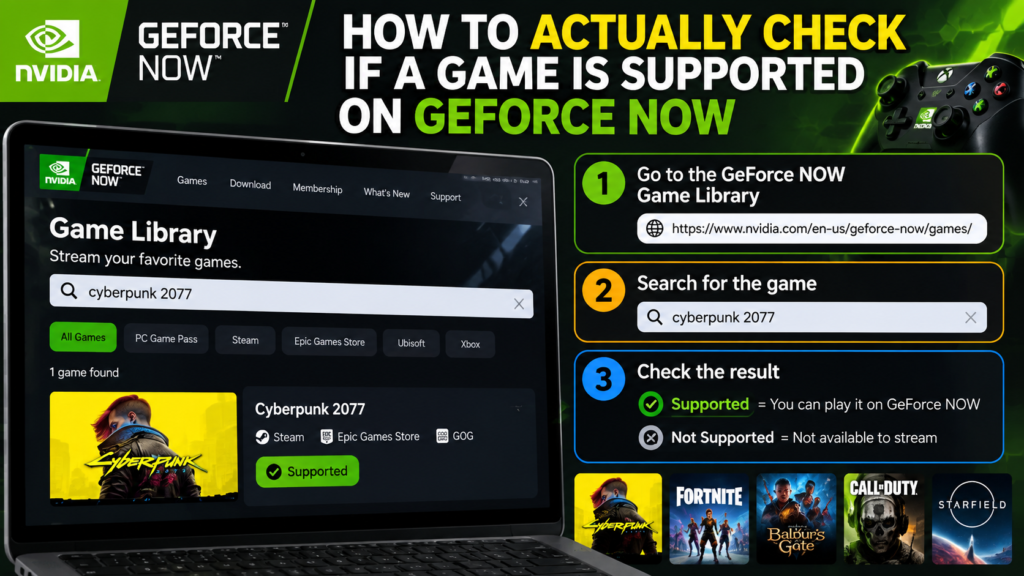
The direct way: NVIDIA’s own supported-games list
NVIDIA maintains an official “Big List of Games” documenting every title currently supported for cloud streaming. This is the most authoritative source, since GeForce NOW’s supported catalogue is actively managed and games are added (and occasionally removed) over time — a list you checked months ago may not reflect the current state.
Checking directly inside the app or web client
Sign into the GeForce NOW web client, go to your library, and look at the specific title in its storefront section (Steam, Epic, etc.). If you see a Play button, it’s supported and ready to stream. If you only see a “Free Trial” prompt or no actionable button at all, that’s your signal to double-check further rather than assume the game simply isn’t supported.
The Steam Curator page as a second reference
A dedicated Steam Curator page separately tracks GeForce NOW-compatible titles specifically for Steam library owners — useful as a quick cross-reference if you primarily buy games through Steam and want a storefront-specific view rather than NVIDIA’s full cross-platform list.
The account-linking trap
Here’s the detail that catches people who assume a game is broken: even a genuinely supported game can appear unsupported if your storefront account isn’t properly linked to your GeForce NOW account. Before concluding a game truly isn’t supported, verify that the specific gaming platform account that owns the game is correctly linked — a sync issue on the account side, not the game’s actual compatibility status, is a common cause of a missing Play button.
The practical troubleshooting order
If a game won’t stream: first check NVIDIA’s official supported-games list to confirm it’s genuinely on the list; if it is, check that the correct storefront account is linked in your GeForce NOW settings before assuming anything is broken on NVIDIA’s end.
The practical takeaway
A missing Play button on GeForce NOW is a symptom with two very different causes — genuine non-support, or an account-linking issue — and checking the official list first, then your account links, resolves the ambiguity faster than guessing.