
Last verified 2026-09-25 by ReviewGamers Editorial
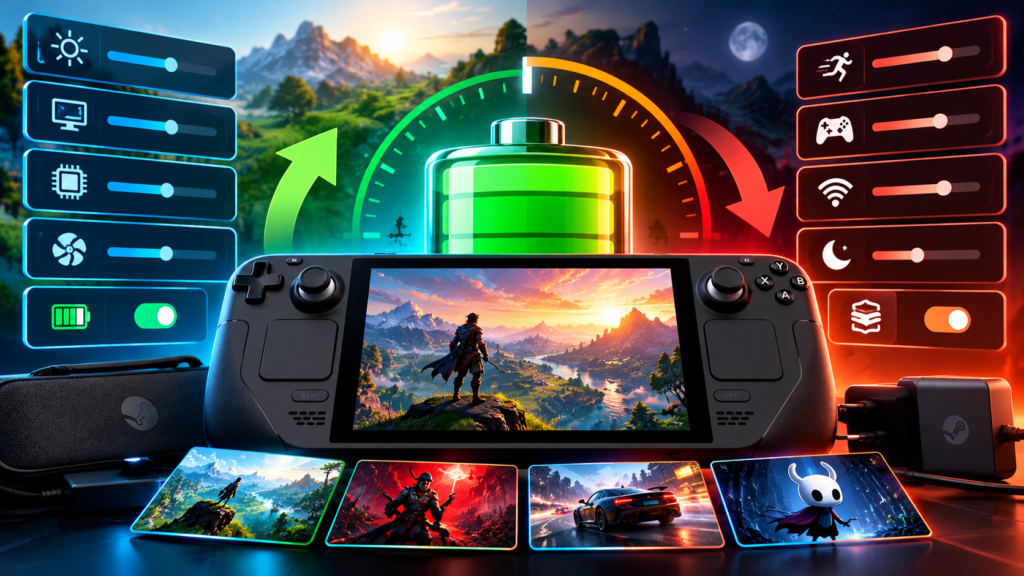
Valve’s own specification for the Steam Deck OLED lists a battery range of 3 to 12 hours, and that gap is the whole story. Nothing about the hardware changes between the 3-hour end and the 12-hour end — the difference is entirely down to what you’re running and how you’ve configured it.
Refresh rate isn’t the same as frame rate
The OLED panel supports up to 90Hz, and it’s genuinely a better-looking screen at that refresh rate. But running the display at 90Hz doesn’t mean every game needs to hit 90 frames per second to look good — the panel refreshing faster and the game rendering faster are two separate settings.
For demanding 3D games, a lower, steadier target usually beats a higher, unstable one for both feel and battery. A 40 FPS cap paired with a 40Hz refresh rate is a commonly recommended balance point for heavier titles: noticeably smoother than 30 FPS, without asking for anywhere near the power draw of an uncapped or 60 FPS target.
Brightness matters more on OLED than it did on LCD
Because OLED pixels don’t use a backlight, dark scenes and dark UI elements cost less power on OLED than the equivalent scene did on the original LCD Deck. That means brightness settings that felt necessary on the older model can often come down. Somewhere in the 30-40% range indoors is a common comfortable starting point, adjusted up only if you’re actually in bright ambient light.
TDP: leave it uncapped globally, cap it per game
Thermal Design Power — the wattage ceiling the APU is allowed to draw — is the setting with the most direct effect on both battery life and heat. The general approach that gets recommended most often isn’t to set one global TDP limit for everything, but to leave TDP uncapped at the system level and set specific limits per game, since a 2D indie title and a demanding open-world game have completely different power needs.
For genuinely battery-focused sessions, an 8-10W TDP cap alongside a lower frame rate target and reduced brightness is a common combination for stretching playtime, though the exact number a specific game needs to stay stable will vary by title.
Why per-game profiles are the actual answer
SteamOS’s performance overlay lets you toggle “Use per-game profile” so each game remembers its own FPS cap, refresh rate, and TDP limit instead of inheriting one global setting. This is the setting that actually solves the underlying problem: a single global configuration can never be right for both a demanding new release and a decade-old indie game running at a fraction of the power draw. Turning per-game profiles on for your heaviest titles first, then adjusting brightness and TDP down until you find a stable frame rate, gets closer to the top end of Valve’s quoted range than any single global setting will.
Where to go from here
Because the “right” numbers depend heavily on the specific game’s demands, treat the ranges above as a starting point to tune from rather than a fixed answer, and adjust per game once you’ve got a baseline that feels stable.