
Last verified 2026-09-27 by ReviewGamers Editorial
Switching phones and losing hours of game progress usually is not a broken save file — it is a setting that was never turned on before the old phone was set aside.
Progress has to be linked to your Google Account first
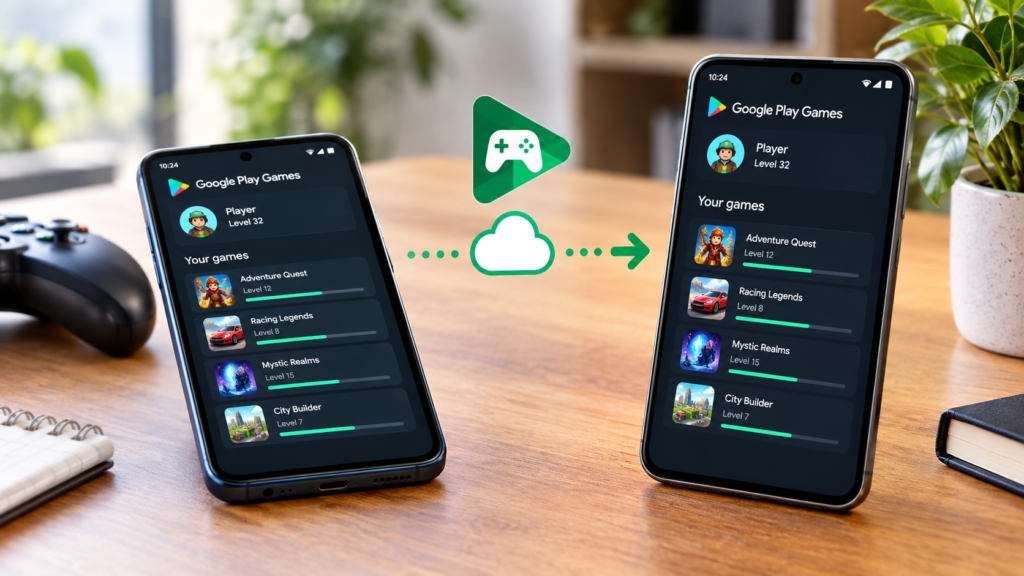
Google’s own support guidance is specific: to carry progress between an Android phone, tablet or computer, a game’s progress has to be linked to your Google Account, which is controlled through a toggle that applies to all supported games at once. If that toggle was off, there is nothing for a new device to pull down.
Not every game autosaves the same way
Some games autosave continuously while signed in through the Google Play Games app; others only save at specific checkpoints. Either way, the save only becomes available on a new device if you were signed in with the same account when the game last saved.
Restoring on a new phone
Google’s official restore guidance is to sign in to the same Google Account you used previously as the first step, then check the game’s own in-app sign-in status, since a game can appear installed without actually being signed in to Play Games.
What this does not cover
Not every Android game uses Google Play Games sign-in at all — some studios run their own separate account system, and Google’s linked-progress feature has no effect on those saves. If a specific game does not mention Google Play Games or Play Games sign-in in its own settings, this feature is not the one to check.
The takeaway
Before switching phones, open Google Play Games, confirm you’re signed in, and confirm the “link progress” toggle is switched on for the games you care about. Doing that before the switch, not after, is what actually prevents lost progress.